Captive Portal WiFi Login: What Customers See and Why It Works
The psychology of WiFi login pages — why customers happily share their email, what happens technically, and how to design a login flow that converts.
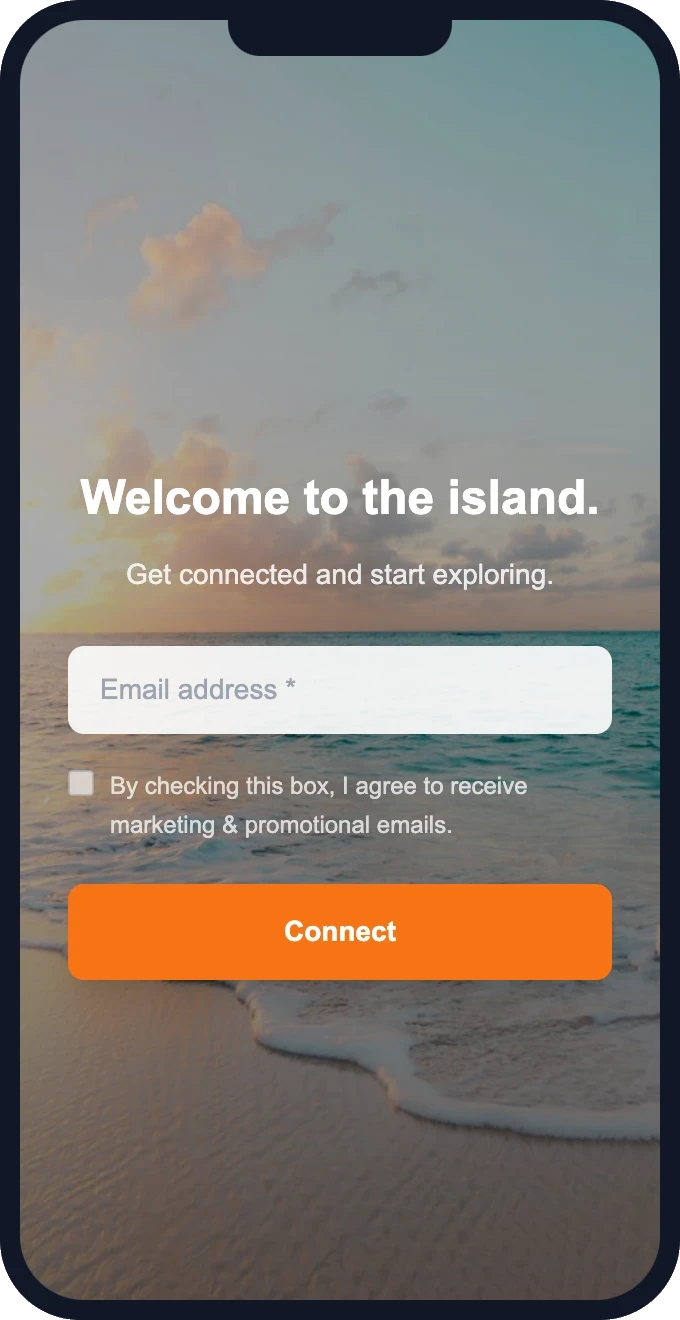
Every time a customer connects to your business WiFi and sees a branded login page, that's a captive portal wifi login in action. It's the most effective email capture mechanism available to physical businesses — and most customers don't think twice about it. They enter their email, tap connect, and they're online. But behind that simple interaction is a fascinating piece of psychology, some clever networking, and a design pattern that consistently achieves 70-90% opt-in rates.
Why 70-90% of customers share their email
Those numbers sound too good to be true. Every other email capture method — website pop-ups, sign-up sheets, QR codes — struggles to hit 5%. So why does a wifi portal convert at 15-20x the rate? Three reasons:
1. The incentive is immediate and tangible
WiFi access is something the customer wants right now. Not "get 10% off your next purchase" or "subscribe for weekly tips." WiFi is instant gratification — enter email, get internet. The value exchange is clear, immediate, and proportional. One email address for unlimited WiFi during their visit feels like a great deal to the customer.
2. It's an expected interaction
Customers have seen WiFi login pages at airports, hotels, coffee shops, and malls. It's a familiar pattern. There's no surprise or suspicion — they expect to see a login page when connecting to public WiFi. This familiarity eliminates the hesitation that kills other capture methods.
3. The commitment is low
An email address feels low-stakes to most people. It's not a phone number, a credit card, or a physical address. Combined with the immediate reward (WiFi access) and the familiar format, the psychological barrier to sharing an email on a wifi login page is near zero.
What happens technically when someone connects
Understanding the technical flow helps you troubleshoot issues and set expectations. Here's what happens behind the scenes when a customer taps your WiFi network name:
- Device connects to the access point — the customer selects your network and their device associates with the access point. At this stage, they have a WiFi connection but no internet access.
- Captivity detection — the device automatically sends a test request to a known URL (Apple uses captive.apple.com, Android uses connectivitycheck.gstatic.com). When this request gets redirected instead of reaching its destination, the device knows it's behind a captive portal.
- Portal page displays — the device opens a mini-browser (on iOS) or a notification (on Android) showing your branded splash page. This is your captive portal network login screen.
- Customer authenticates — they enter their email and tap "Connect." The portal server records their email, MAC address, and timestamp, then authorizes their device for internet access.
- Post-connection redirect — the customer is redirected to your custom homepage with links to services, promotions, or social media.
- Session active — the customer now has full internet access. Their session typically lasts 24 hours before requiring re-authentication (configurable).
Ready to see this in action?
Set up takes 15 minutes. Free — we configure everything for you.
Mobile vs. desktop experience
Mobile (80%+ of connections)
On smartphones, the captive portal appears as a sheet or overlay — a mini-browser controlled by the operating system. On iOS, it's the familiar "Log In" sheet that slides up. On Android, it's typically a notification that opens a browser tab. Key considerations for mobile:
- The splash page must be fully responsive — no horizontal scrolling
- The email field should trigger the email keyboard (input type="email")
- The connect button must be large enough to tap easily (minimum 44px height)
- Page load must be fast — mobile mini-browsers have limited patience
- Avoid complex layouts — a single column with logo, headline, field, and button works best
Desktop and laptops
On macOS and Windows, the captive portal typically opens in a dedicated browser window or triggers a notification. The experience is similar but less constrained — you have more screen space and faster rendering. However, since mobile dominates, always design for mobile first.
Best practices for the login flow
Keep it to one field
Email-only is the sweet spot. Every additional field (name, phone, birthday) drops conversion by 10-15%. If you need more data, collect it later via email follow-up — not on the splash page where it blocks WiFi access.
Make the value exchange explicit
Your headline should state what they get: "Enter your email for free WiFi." Not "Join our community" or "Sign up for offers." Be direct about the trade.
Use your brand, not generic design
A branded portal with your logo, colors, and a photo of your space builds trust. A generic white page with just a text field feels suspicious. Invest 10 minutes in customization — it directly impacts conversion.
One-tap return connections
After the first login, returning customers should reconnect without re-entering their email. The portal remembers their device and grants access automatically (while still logging the visit). This eliminates repeat friction and keeps the experience seamless.
Fast load time is non-negotiable
If your splash page takes more than 2-3 seconds to load, customers will close the mini-browser and give up. Keep images small (under 100KB), skip heavy fonts, and avoid external scripts. The page should feel instant.
Include a privacy note
A single line like "We'll email you occasionally. Unsubscribe anytime." reduces anxiety without adding friction. It's also good practice for GDPR and CAN-SPAM compliance.
Getting started
A well-designed captive portal wifi login is the highest-converting email capture tool any physical business can deploy. GuestWiFi gives you mobile-optimized templates, one-field capture, and automatic return-device recognition — all at $15/mo per access point with free setup. Your customers are already connecting to your WiFi. Start capturing that data.
Start capturing customer emails today
$15/month per access point. All features included. We set it up for you — free.
Get Started — Free Setup →No credit card required · Cancel anytime